


WordPress 7.0 ships an AI Client, the PHP library behind wp_ai_client_prompt(), and a Settings, Connectors screen where AI providers plug in. Install the AI Provider for Ollama plugin and that client can talk to a model running on your own computer or server through Ollama, so prompts never leave your network and nobody bills you per token.
The setup is short: run Ollama, pull a model, activate the plugin, set the host address, run a test prompt. Nearly every question in the plugin’s support forum comes down to WordPress not reaching Ollama, so the second half of this post works through those failures with the exact messages you will see.
Key takeaways
- WordPress 7.0 can run AI features on a local model. Install the AI Provider for Ollama plugin and the AI Client talks to Ollama on your own computer or server, so prompts stay on your network and there is no per-token bill. arvindkumar.ca
- You need Ollama with a model pulled, WordPress 7.0 or later, and the AI Provider for Ollama plugin. A model needs roughly its download size in free memory, and it is only quick when that fits on the GPU, so start small. arvindkumar.ca
- Set the Host URL to the base address without /v1, which defaults to http://localhost:11434. Leave the API key empty for a local server, and the Connectors screen shows Connected once WordPress can fetch the model list. arvindkumar.ca
- When choosing a model in code, use the name exactly as ollama ls prints it, tag included, such as llama3.2:latest. With no preference or a name that does not match, the client quietly takes the first model alphabetically. arvindkumar.ca
- “AI provider not configured” almost always means WordPress cannot reach Ollama. The AI Client hides the real network error, so send the same GET /api/tags request through WordPress’s HTTP layer to see it. arvindkumar.ca
- Docker, virtual machines and live sites are the usual culprits, because localhost is the container or the server, not your desk. Use host.docker.internal, make Ollama listen beyond 127.0.0.1, or run Ollama where the server can reach it, and put a reverse proxy in front of anything you expose. arvindkumar.ca
- A local model suits sensitive content, small frequent tasks and development. A cloud provider suits work where answer quality matters more than where the text goes, or servers with no GPU. arvindkumar.ca
Summarised from this post, formatted for answer engines.
What do you need?
- Ollama with a model pulled, for example
ollama pull llama3.2. A model needs roughly its download size in free memory and is only quick when that fits on the GPU;ollama psshows where a loaded model landed. Start small. - WordPress 7.0 or later. The steps here were checked on 7.1.
- The AI Provider for Ollama plugin from WordPress.org, by Fueled, version 1.3.0 (13 October 2026), code on GitHub under Fueled/ai-provider-for-ollama. It needs WordPress 7.0 and PHP 7.4, and talks to Ollama’s
/api/tags,/api/showand OpenAI-compatible/v1/chat/completionsendpoints. No API key for a local server. - Optional: the AI plugin from WordPress.org (1.4.0, needs WordPress 7.0.3) for ready-made features such as alt text, excerpts and titles.
How do you connect WordPress to Ollama?
- Install and activate the plugin from Plugins, Add New. If you fetch it from GitHub, use the release zip, not the source: the source has no
vendorfolder, and the plugin then asks you to runcomposer install. - Open Settings, Ollama. Host URL defaults to
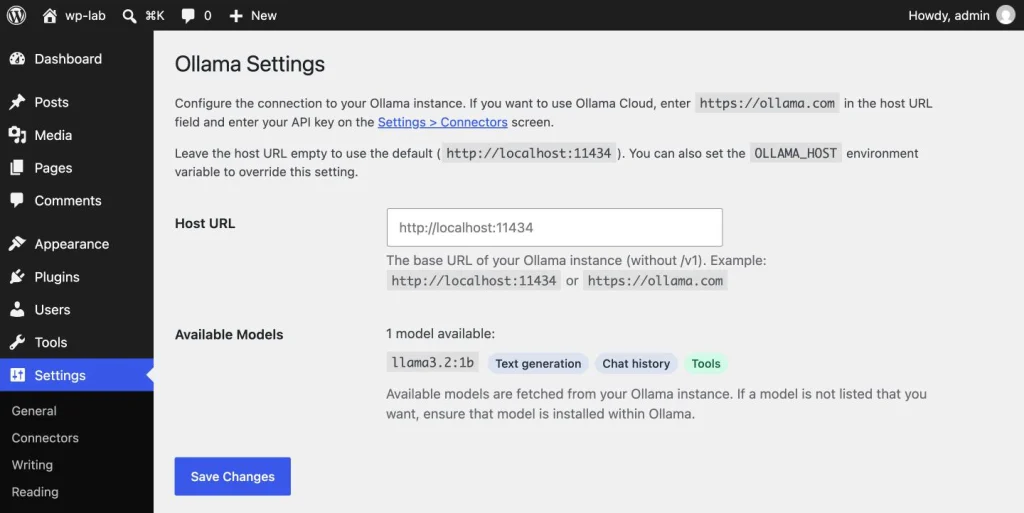
http://localhost:11434, where localhost is the machine running PHP. Enter the base address without/v1, or every request goes to/v1/api/tagsand Ollama answers 404. The Available Models list is fetched live; “AI provider not configured” means WordPress cannot reach Ollama yet. AnOLLAMA_HOSTenvironment variable visible to PHP overrides the field, and it must includehttp://.
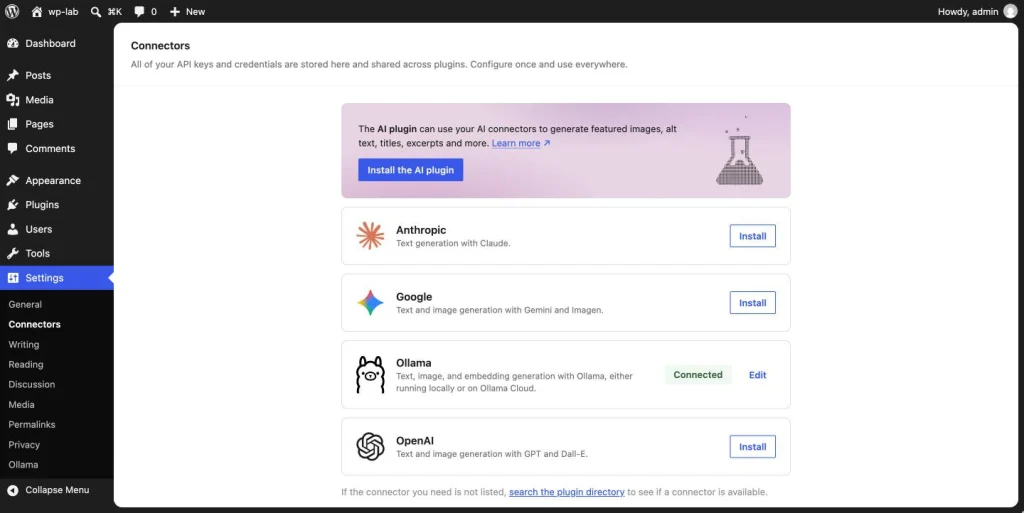
- Check Settings, Connectors. The Ollama card shows Connected as soon as WordPress can fetch the model list, with no key saved. Leave the API key empty for a local server: the plugin registers an empty key, WordPress sends
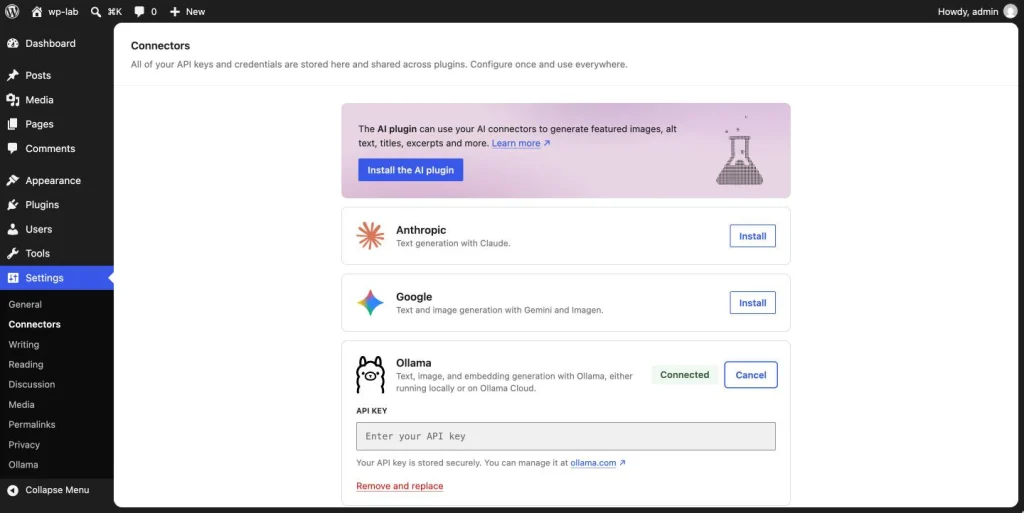
Authorization: Bearerwith nothing after it, and Ollama ignores it. For Ollama Cloud, set the Host URL tohttps://ollama.comand save your key here, or define anOLLAMA_API_KEYconstant or environment variable. Click Edit on the card and you will see an empty key field with the note “Your API key is stored securely” and a Remove and replace link, even though no key is saved. Ignore both and leave the field empty.
- Choose a model. In the AI plugin, open Settings, AI, click the tool icon at the top right (a three-dot menu before 1.4.0) and turn on Model selection; each feature then gets Provider and Model dropdowns. In code, pass
using_model_preference()the name exactly asollama lsprints it, tag included:llama3.2:latest, notllama3.2. With no preference, or a name that does not match, the client quietly takes the first model alphabetically. - Run a test prompt. Save the file below and run
wp eval-file ollama-check.php. Without WP-CLI, turn on excerpt generation in the AI plugin and use it in the editor.
<?php
/**
 * Quick Ollama check. Save as ollama-check.php, then run:
 * wp eval-file ollama-check.php
 */
$result = wp_ai_client_prompt( 'Reply with one word: ready.' )
	->using_provider( 'ollama' )
	->using_model_preference( 'llama3.2:latest' )
	->generate_text();

if ( is_wp_error( $result ) ) {
	WP_CLI::error( $result->get_error_message() );
}

WP_CLI::success( $result );
Why does WordPress say the provider is not configured?
Two messages mean the same thing: “AI provider not configured – ensure Ollama is running or you have valid API credentials.” on the settings page, and the WP_Error No models found for provider "ollama" that support text_generation for this prompt. from a prompt. Both mean one request failed, GET /api/tags on your Ollama host, and the AI Client hides the real network error behind an empty model list. This one-liner sends the same request through WordPress’s HTTP layer and prints the real error, or the model list:
wp eval '$r = wp_safe_remote_get( getenv( "OLLAMA_HOST" ) . "/api/tags" ); echo is_wp_error( $r ) ? $r->get_error_message() : wp_remote_retrieve_body( $r );'“cURL error 7: Failed to connect” means nothing listens at that address from where PHP sits. “A valid URL was not provided.” means the hostname does not resolve from the server, or the address has no http://. “User has blocked requests through HTTP” means wp-config.php defines WP_HTTP_BLOCK_EXTERNAL; localhost is exempt, any other host goes into WP_ACCESSIBLE_HOSTS.
WordPress runs in Docker or a virtual machine
Inside a container, localhost is the container, which is why wp-env, DDEV and similar tools cannot see the Ollama on your desk. Set the Host URL to http://host.docker.internal:11434. Docker Desktop resolves that name to your machine; on a Linux host with Docker Engine, add it with --add-host host.docker.internal:host-gateway on docker run or the matching extra_hosts entry in Compose. If the name resolves but the connection is refused, Ollama is listening on 127.0.0.1 only, which is its default. Set OLLAMA_HOST=0.0.0.0:11434 where Ollama runs and restart it; the Ollama FAQ shows how (launchctl setenv on macOS, systemctl edit ollama.service on Linux). Allow port 11434 through any firewall in between.
A live site cannot reach Ollama on your laptop
The request comes from PHP on the web server, and your laptop behind a home router is not reachable from there. Run Ollama on the server, or on a machine it can reach such as a GPU box in the same private network, or bring your machine into that network with a VPN or tunnel. Protect whatever you expose: Ollama ignores API keys on a self-hosted server, so put a reverse proxy in front that requires the Authorization: Bearer header, which WordPress fills with the key saved on the Connectors screen on every request.
The key check fails on the Connectors screen
When you save a key for an AI provider, core validates it first: it hands the key to the provider and runs the availability check, which for Ollama is GET /api/tags with Authorization: Bearer your-key. Anything but a success response wipes the key and shows “It was not possible to connect to the provider using this key.” For a local server, enter no key; if you do and the check fails, the connection is the problem, not the key. Behind your own proxy, the proxy must accept that one header and ask for nothing more: a commenter on the Connectors API dev note had a llama server behind a login wanting extra headers, and the check cannot pass that.
Large models time out
WordPress does not stream: it sends the prompt and waits for the whole answer, and the plugin gives a generation request 60 seconds (10 for the model list). A slow model, or the first request after Ollama has unloaded the model (after five minutes idle by default, see OLLAMA_KEEP_ALIVE), ends in “cURL error 28: Operation timed out”. Version 1.3.0 added a filter for it; a must-use plugin is the simplest home:
<?php
/**
 * Plugin Name: Ollama timeouts
 * Description: Gives a slow local model up to three minutes to answer.
 */
add_filter( 'ai_provider_for_ollama_request_timeout', function () {
	return 180.0;
} );
Then check what sits in front of PHP: nginx’s fastcgi_read_timeout defaults to 60 seconds, and managed hosts have their own limits. A connect timeout filter exists too, but WordPress’s HTTP adapter only passes the overall timeout through.
A model is missing from the list
Run ollama ls on the instance WordPress talks to; an Ollama container has its own model store, separate from the desktop app. WordPress also filters the list: the plugin asks /api/show for each model’s capabilities and keeps those that report completion (or image generation). Embedding-only models such as nomic-embed-text are left out on WordPress 7.1 on purpose, because the AI Client bundled with core (1.3.1) has no embedding support yet.
When does a local model make sense?
| Question | Local model through Ollama | Cloud provider |
|---|---|---|
| Where does the content go? | Nowhere. It stays on the machine you chose. | To the provider, under its terms. |
| What does it cost? | Hardware, power and your time. No per-token bill. | A per-token bill that grows with use. |
| How good are the answers? | Fine for alt text, excerpts, titles and classification. Small models struggle with long or subtle writing. | The strongest models available, and the newest first. |
| How fast is it? | Depends on your GPU. CPU-only is slow beyond short prompts. | Usually fast, and it does not compete with your own workload. |
Local wins when the content is sensitive, when the task is small and frequent, or when you are developing and do not want a bill for every test run. Cloud wins when quality matters more than where the text goes, or when the server has no GPU. I wrote more about leaning on these tools in is AI bad for developers.
Start with the smallest model that does the job, get the test prompt passing, then wire the AI plugin’s features to it. Keep the one-liner handy for the day a Docker rebuild or a server move breaks the connection.